Crystal Reports Without Database
Crystal Reports is commonly utilized to retrieve data from databases and present it in the form of a report. However, in this particular scenario, we will demonstrate how to generate a Crystal Reports document without relying on a traditional database. Instead, we will employ a Strongly Typed Dataset and a Data Table to achieve this.
Before investigating into the specifics of generating a Crystal Reports document without a database, it is recommended to familiarize yourself with the fundamentals of Crystal Reports creation. To acquire a comprehensive understanding, please refer to the previous section of this tutorial, which provides a step by step Crystal Report guide on creating Crystal Reports.
Generating a Strongly Typed DataSet
Create a new VB.NET Project and accept the default settings. Create a new Dataset from Project - Add New Item Dialogue Box.
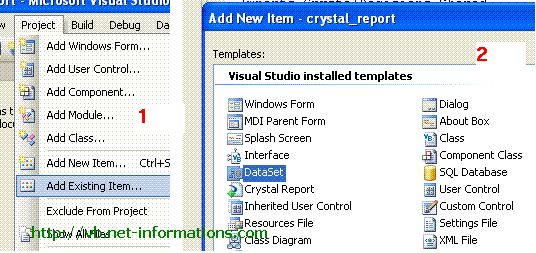
Accept the default name DataSet1.xsd .
Create a data table for DataSet1.xsd .
Select DataSet1.xsd from Solution Explorer and right click . Select datatable from the menu. Then you will get a datatable in the Datast . Right click the datatable and select Add-Column.
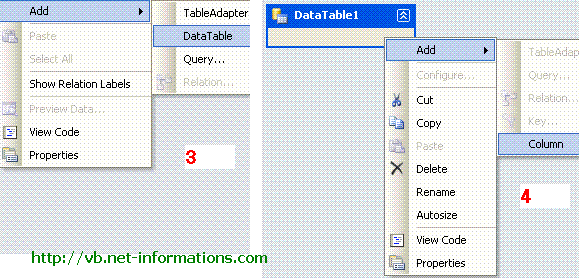
Here we are making a two column Crystal Reports , so we need two column in the data table . Add and ID column and Name column in the Data Table.
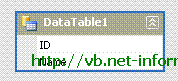
The dataset portion has been completed. The subsequent step entails creating a Crystal Reports document based on this dataset. Before proceeding with the Crystal Reports design, it is highly recommended to refer to the step-by-step Crystal Report guide, which provides a straightforward approach to creating Crystal Reports.
To initiate the process, select "Add New Item" from the menu and choose "Crystal Reports" as the new item. Accept the default settings for the Crystal Reports configuration. The following screen prompts you to select the appropriate data source. From the "Project data - ADO.NET Datasets" section, locate "Datatable1" and choose it by moving it to the right-hand side.
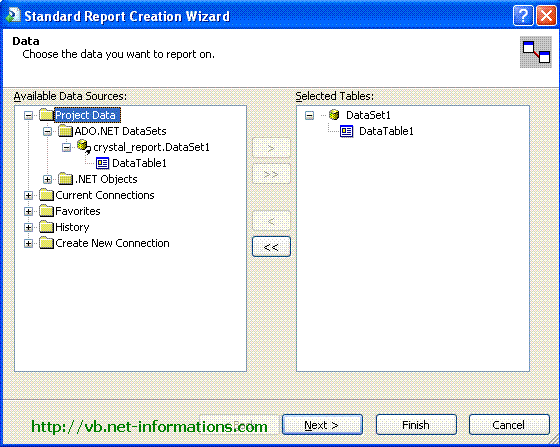
Click Next button and select ID and Name from the datatable1 to right side and click finish.
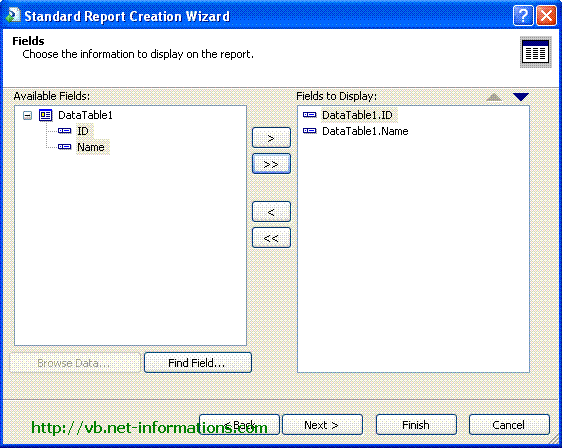
Now the Crystal Reports designer part is over . Next part is to create data for the Crystal Reports . For that we have to create a Data Table through programmatically and add data to dataset1.
Select the default form (Form1.vb) you created in VB.NET and drag one button and CrystalReportViewer control to your form.
Put the following source code in the button click events
Full Source VB.NET- Sample Database and tables for Crystal Reports tutorials
- Step by Step help for creating a simple Crystal Reports in VB.NET
- VB.NET Crystal Reports from multiple tables
- VB.NET Crystal Reports String parameter
- VB.NET Crystal Reports Integer parameter
- VB.NET Crystal Reports Date parameter
- VB.NET Crystal Report Load Dynamically
- VB.NET Crystal Reports Formula Fields
- VB.NET Crystal Reports Summary Fields
- VB.NET Crystal Reports Export to PDF
- VB.NET Crystal Reports Export to Excel
- Email a Crystal Reports from VB.NET
- Crystal Report from SQL Query String
- Dynamic Crystal Reports from SQL Query String
- Crystal Reports from XML File
- Create a Subreport in Crystal Reports
- Create a Subreport in Crystal Reports with Link
- How to deploy Crystal Reports on Clinet Machine
- How to create Crystal Reports installer using Merge Modules